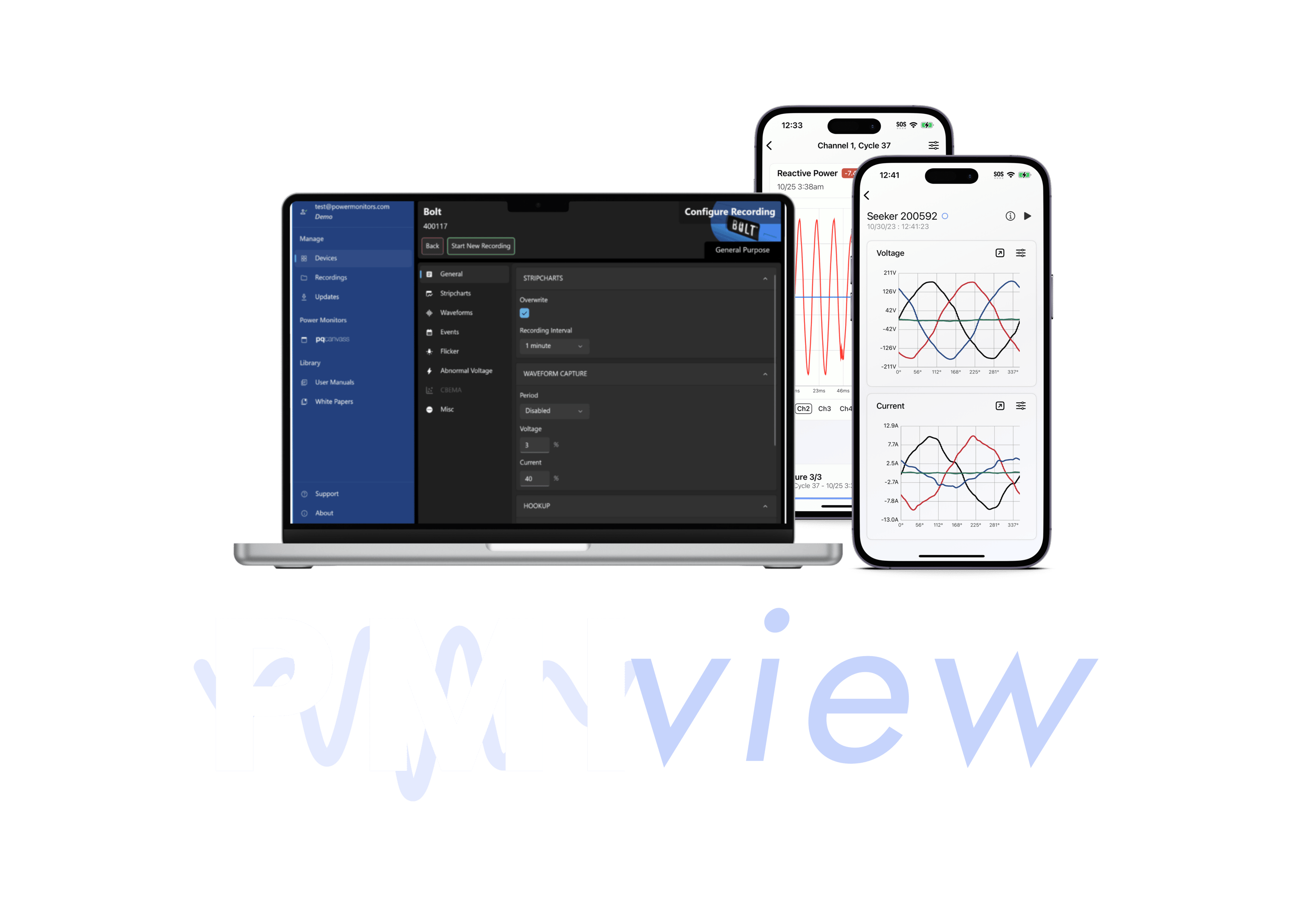
The iOS and Android mobile apps connect to PMI recorders and support live monitoring with waveforms, vector diagrams, harmonics, and meter readings — plus downloading recordings and initializing new sessions. The Windows desktop app focuses on recorder management — initializing recordings, updating firmware, verifying hookup, and transferring data to PQ Canvass. Data analysis is done in PQ Canvass on all platforms.
PMI View supports WiFi, Bluetooth, USB, and LTE connections. The app automatically scans for nearby devices via Bluetooth, or you can enter the recorder's serial number manually. If you log in with your PQ Canvass credentials, the app will sync with your known devices. For best performance, connect via the recorder's WiFi when available.
PMI View is designed for field use — connecting to recorders, viewing live data, downloading recordings, and initializing new sessions. For in-depth data analysis including stripcharts, histograms, daily profiles, and ITIC/CBEMA events, transfer your recordings to PQ Canvass.
On iOS and Android, you can transfer recordings directly to PQ Canvass, sync with Microsoft OneDrive, share via email, or use the web server feature for PC transfer. Recordings uploaded to PQ Canvass appear under the 'Provision Sync' folder. On Windows, use PMI View to transfer recordings to PQ Canvass for analysis.
A PQ Canvass account is required to log in to PMI View and to sync your known devices. If you don't have credentials, contact our Tech Support team at (800) 296-4120 to get set up.
Need more help? Our Technical Support Team is available 24/7. Call (800) 296-4120, visit the Support Center, or browse our full training catalog.